 ultracal
Calendar · widgets · notes
Your day.
Already in view.
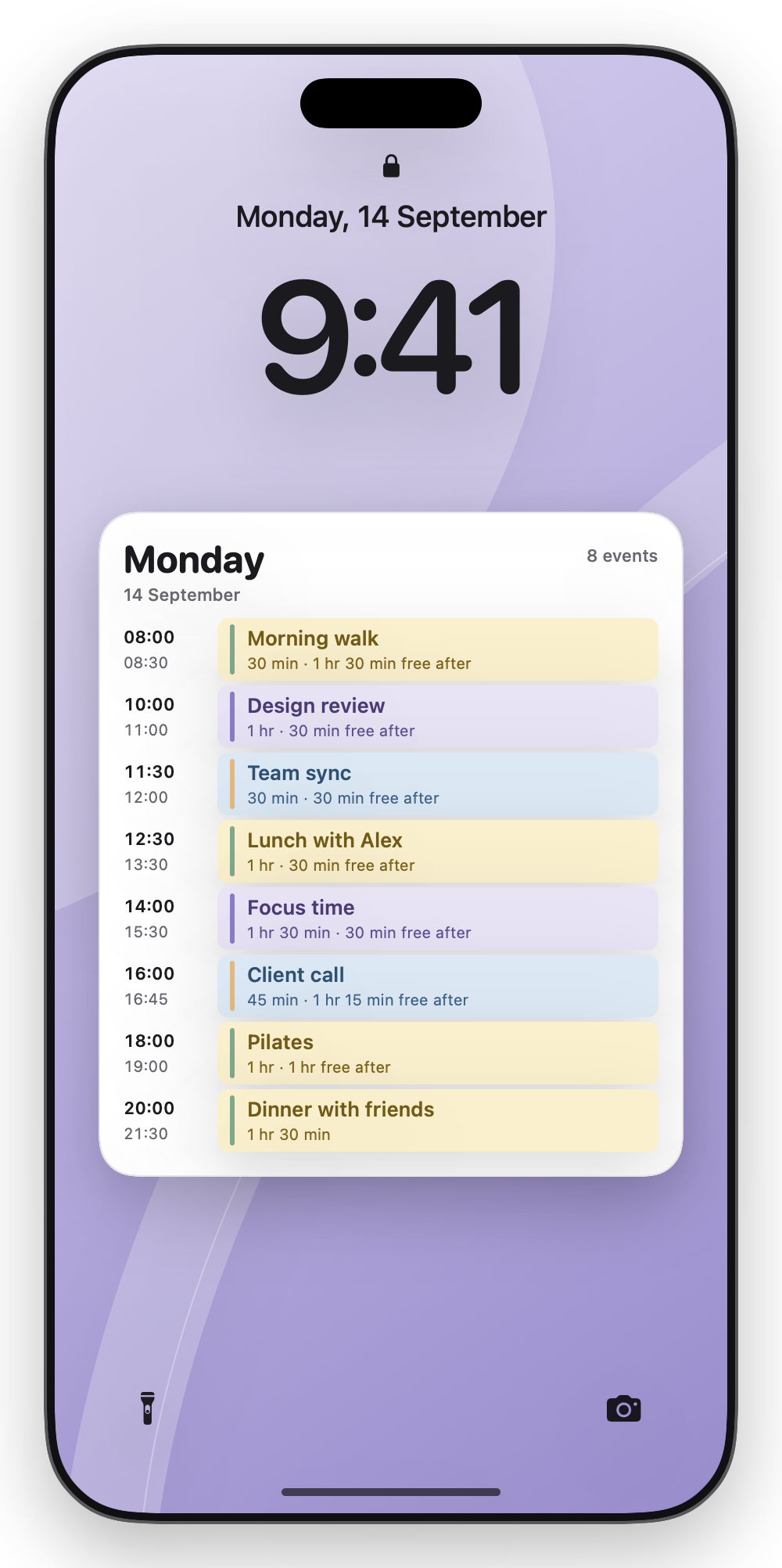
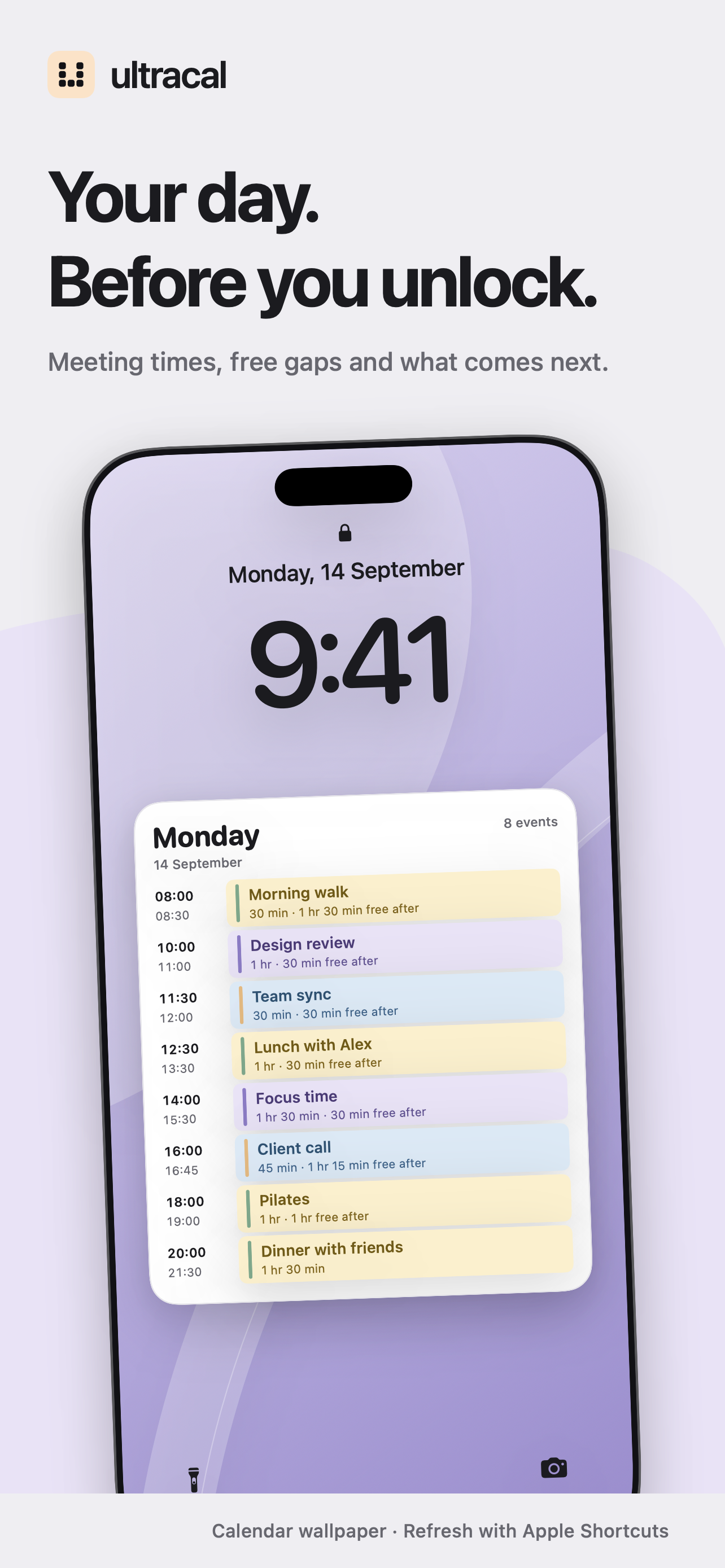
Your meetings, the time between them, and the things you want to remember. Right on your iPhone.
Coming soon to iPhone · Requires iOS 26 or later
A calendar with plans.
And a place for yours.
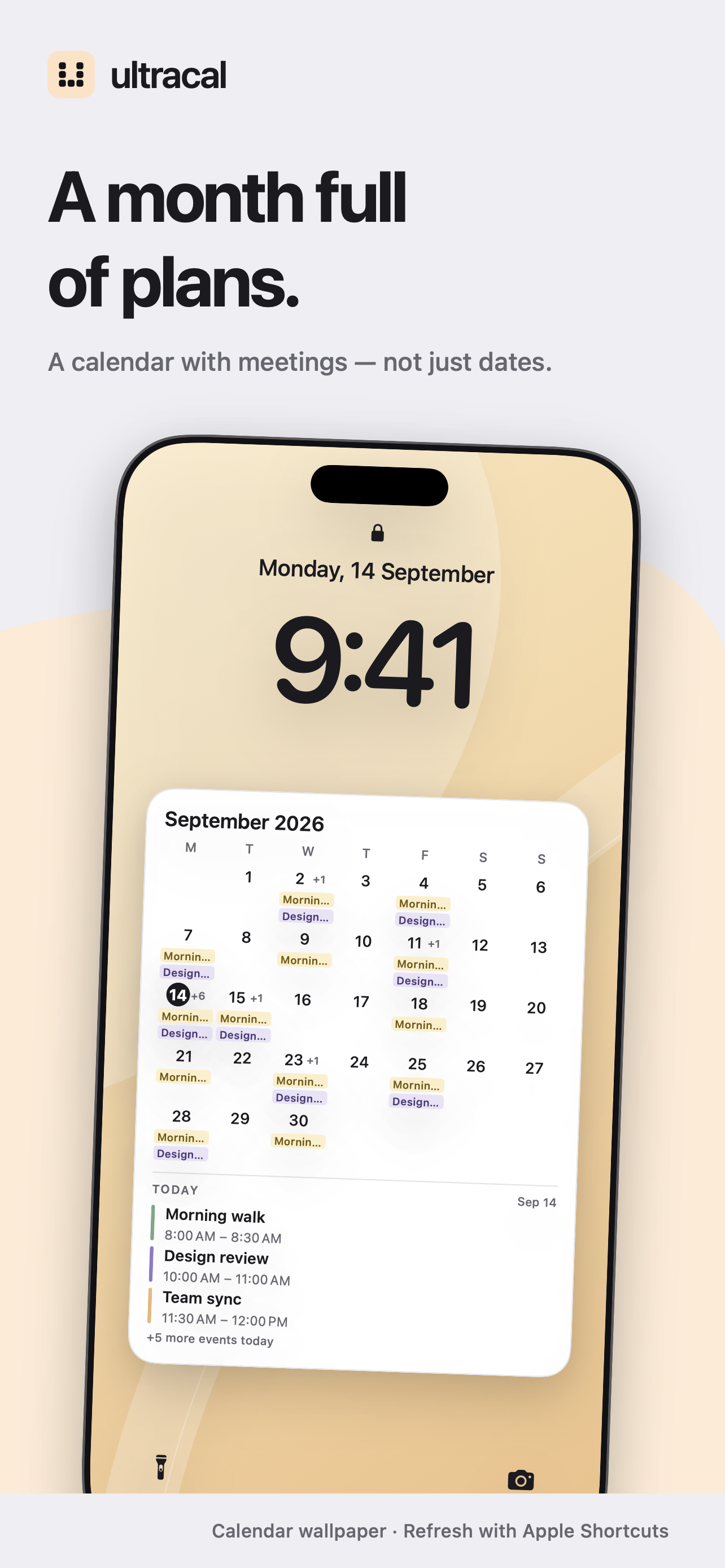
A full day, a month of meetings, or a note you keep coming back to. Choose what you want to see.
Your Home Screen, too
Keep the useful
things close.
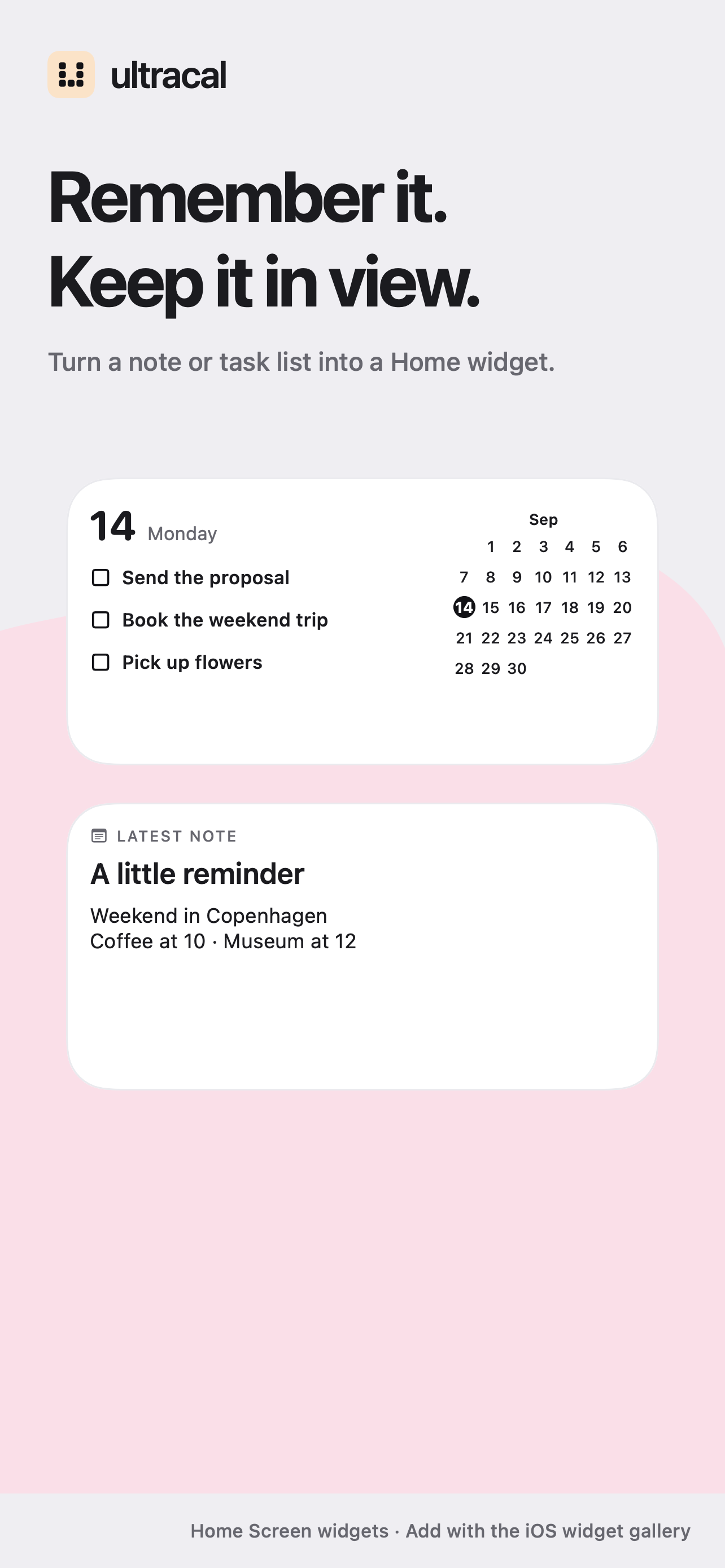
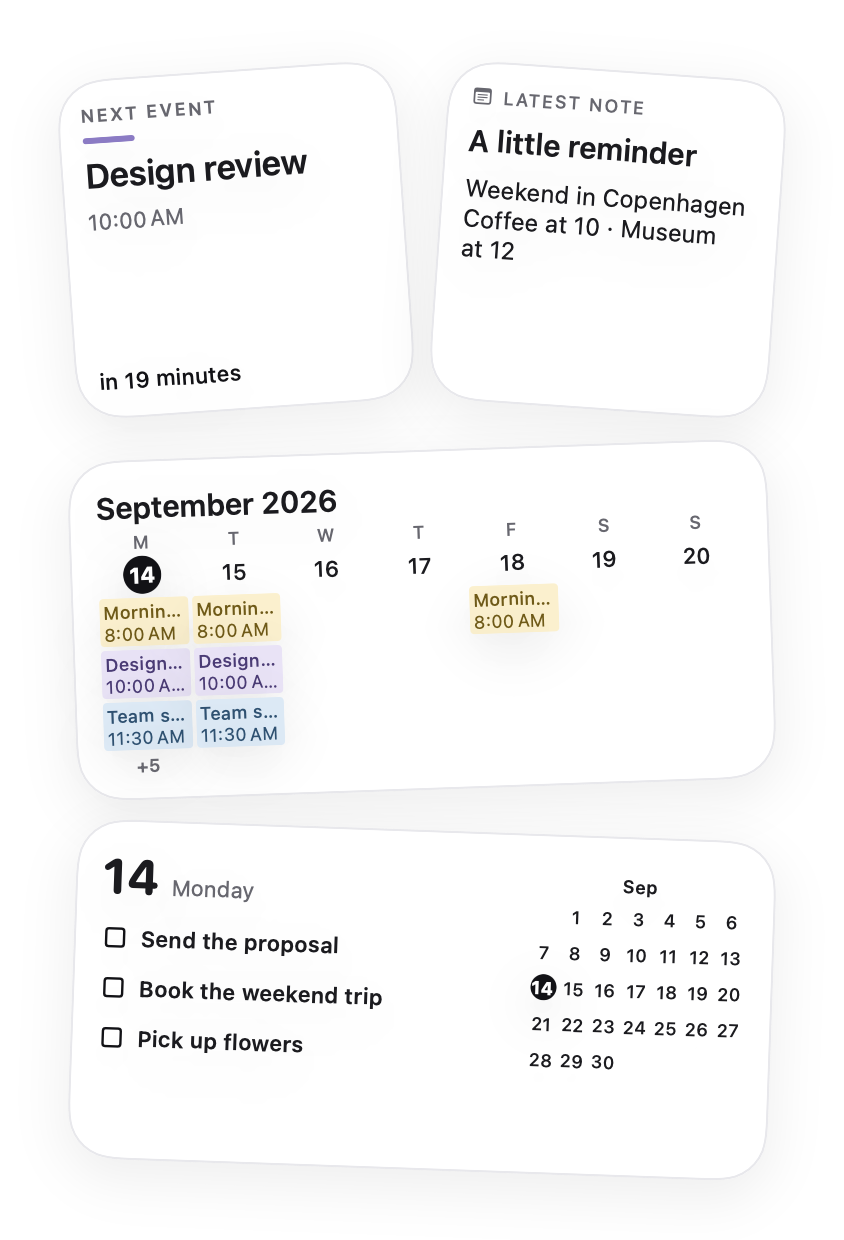
Add an actual Home Screen widget for your next meeting, calendar, tasks or notes. Each size has its own layout. Your Home background stays yours.
How to add a widget ↗From your calendar
to your Lock Screen.
Set up your first design once. Use the same shortcut when you want a fresh view.
Choose your calendar
Connect a calendar available through iPhone Calendar. Choose which meetings belong in your view.
Make it yours
Pick a layout and background. Preview your own events, or keep their titles private.
Put it in view
Follow the in-app guide to add the Ultracal shortcut and apply your Lock Screen wallpaper.
Large calendars are wallpaper images. Run the shortcut to refresh them. Daily automation is optional and set up in Apple Shortcuts.
Native Home and compact Lock Screen widgets are added separately through iOS. See the step-by-step guide.
A hand with setup?
Clear steps for calendars, widgets and your first Lock Screen.